
Install Mobile on the Fly: Docker (Asustor, TerraMaster, UGREEN…)
For Asustor, TerraMaster and UGREEN NAS, and any NAS or server that runs Docker: Mobile on the Fly automatically stores the photos and videos from the phones there, over the local network, without going through the Internet. Allow 15 minutes.
Do you have a Synology or a QNAP? Use their package instead (Synology guide, QNAP guide): it fits better into the NAS.
1. Before you start
- The NAS's Docker app, installed from its app store:
NAS App Asustor (ADM) Portainer CE (App Central), with Docker Engine TerraMaster (TOS 5 / 6) Docker Manager (Applications Center) UGREEN (UGOS Pro) Docker (App Center) Other Linux server Docker and Docker Compose - A folder for the photos on the NAS, created beforehand with the NAS's file manager, for example a
Photosfolder in a shared folder. Write down its full path: it is shown in the folder's properties, for example/volume1/Photos(Asustor, UGREEN),/Volume1/Photos(TerraMaster, with a capital V). - The phones on the same network as the NAS.
- An hour to spare after starting it: for your security, the profile can only be created within the hour after the container starts.
A single image works for all NAS (Intel, AMD, ARM 64-bit and 32-bit): Docker picks the right one by itself. It is downloaded from our server: mobileonthefly.com/photorelay.
2. Install the container
The easiest way is a project (also called a stack or Compose) with the file below. Only one line needs changing: the photos folder, to the left of the colon.
services:
  photorelay:
    image: mobileonthefly.com/photorelay:latest
    container_name: photorelay
    network_mode: host
    restart: unless-stopped
    environment:
      TZ: Europe/Paris
    volumes:
      - /volume1/Photos:/photos
      - photorelay-data:/data
volumes:
  photorelay-data:
This file can also be downloaded from the Downloads page (compose.yaml).
network_mode: hostis essential: it is what lets the phones find the NAS on the network./volume1/Photos: replace with the path of your folder. The photos arrive in it, in aMobile on the Flysubfolder.photorelay-datakeeps Mobile on the Fly's settings and keys: do not delete it.TZ: your time zone (Europe/Paris, Europe/Brussels, America/Montreal…).
Portainer (Asustor, and most NAS)
- Open Portainer › the local environment › Stacks › Add stack.
- Name:
photorelay. Choose Web editor and paste the file above (with your folder). - Click Deploy the stack. Portainer downloads the image and starts the container.
TerraMaster (Docker Manager) and UGREEN (Docker)
- Open the Docker app › Project (or Compose) › Create.
- Name:
photorelay; project location: a folder on the NAS (for exampledocker/photorelay). - Paste the file above (with your folder), then Create / Deploy. The app downloads the image and starts the container.
From the command line (SSH)
docker run -d --name photorelay --network host --restart unless-stopped \
  -e TZ=Europe/Paris -v /volume1/Photos:/photos -v photorelay-data:/data \
  mobileonthefly.com/photorelay
3. First start: create the profile
- In a browser, open
https://<NAS address>:47822(for examplehttps://192.168.1.50:47822). - The browser warns that the connection "is not private": this is Mobile on the Fly's own certificate, the connection really is encrypted. Chrome, Edge: Advanced › Continue to …; Firefox: Advanced… › Accept the Risk and Continue; Safari: Show Details › visit this website.
- Page "First start on this NAS": profile name, password (at least 8 characters) twice, Create the profile.
- Wait a few seconds, Sign in with this password. The photos will go to the folder mounted on
/photos.
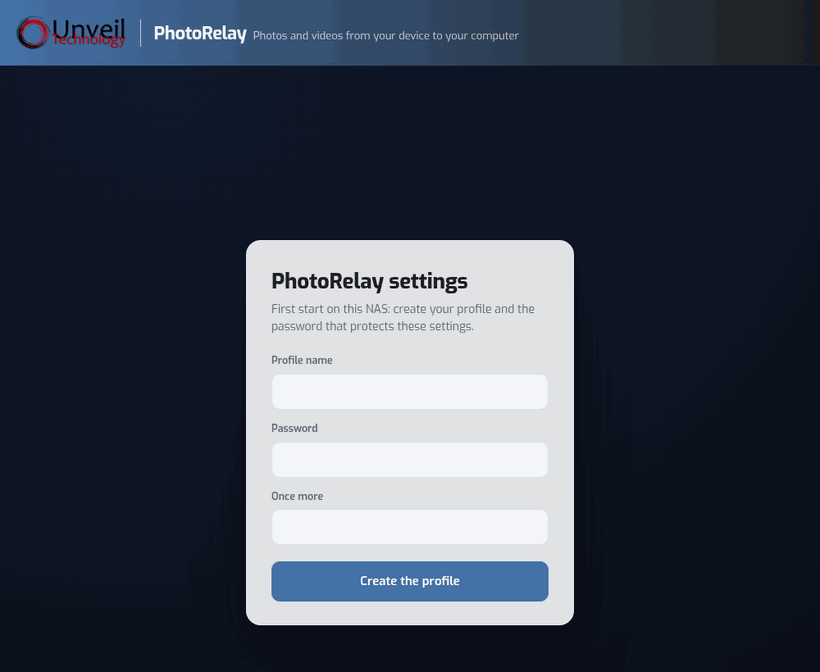
Write this password down and bookmark the address: it is the Mobile on the Fly settings page.
4. Link the phone (pairing)
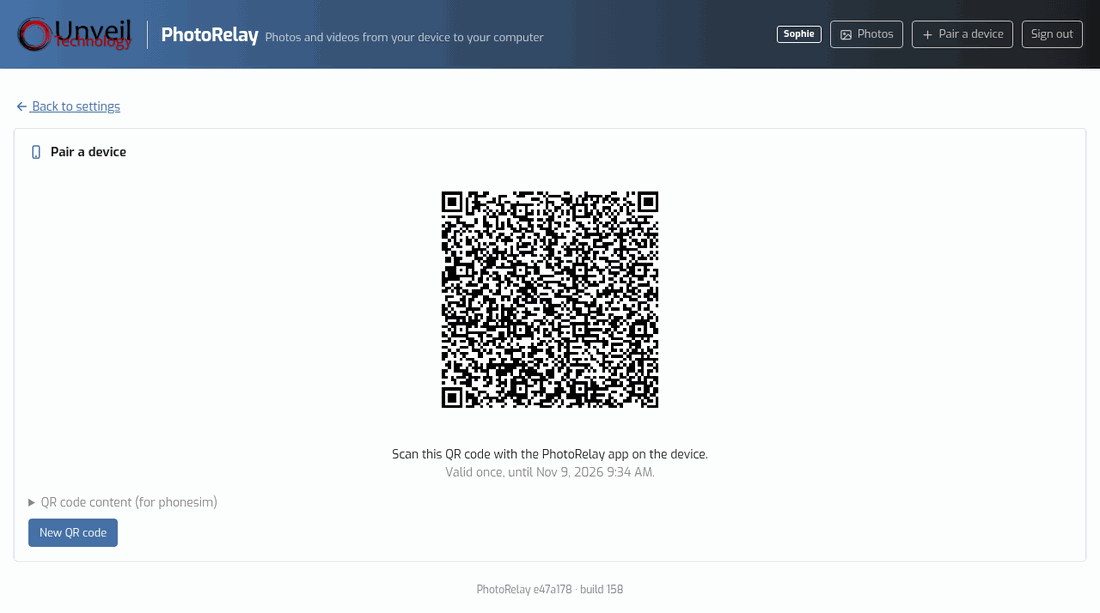
- In the settings, Pair a device (top right): a QR code appears.
- On the phone (Android guide), Mobile on the Fly app › Scan the QR code, check the device name, point at the QR code.
- The phone shows "Paired with …". A new QR code for each phone.
5. Check that everything works
- Take a photo with the phone connected to the Wi-Fi, then Send now: Delivered goes up by 1.
- In the NAS's file manager:
<your folder>/Mobile on the Fly/<phone>/Camera/2026/2026-11-09/; earlier installations:PhotoRelayfolder.
6. Useful settings
- Recovery key: Profiles and security tab › Download the recovery key, to keep off the NAS. It lets you recreate the container (or move to a new NAS) without pairing the phones again, even if the
photorelay-datavolume is lost. - Folder: only folders under
/photosare offered. To use another folder on the NAS, change the container's volume (to the left of:/photos) then recreate it. - Devices: rename, remove a lost or sold phone, cloud relay (paid plan).
7. Common problems and solutions
"Mobile on the Fly is not set up on this NAS yet." (no creation form)
The profile can only be created within the hour after the container starts. Restart the photorelay container in the Docker app (or docker restart photorelay), then reopen the page within the hour.
The https://…:47822 page does not open
- Is the container started? In the Docker app, status Running; otherwise start it and look at its log (Logs).
- Is the network mode really
host? Without it, neither the page nor the phones can reach Mobile on the Fly. - Is the NAS firewall enabled? Allow TCP ports 47820 and 47822, and UDP 5353, from the local network.
- Make sure you type https:// and the port :47822.
"pull access denied" or image not found
Check the exact image name: mobileonthefly.com/photorelay:latest, and that the NAS has access to the Internet (and to this site) during the installation.
"choose a folder in /photos"
The container only sees the folder mounted on /photos. To change it, edit the project's volume and redeploy it.
The phone says "computer not found"
Phone on the home Wi-Fi, container started in host network mode, ports open in the NAS firewall; "client isolation" option on the Wi-Fi access point and VPN on the phone turned off.
The folder dates are off
Set the TZ variable to your time zone, then recreate the container.
I forgot the settings password
On the sign-in page, click Forgot your password?. With the NAS file manager, create a folder named photorelay-reset in your photos folder (the one mounted on /photos), come back to the page within the hour and click Reload: choose the new password. Photos and paired devices do not change; the photorelay-reset folder is removed automatically.
8. Updates
Mobile on the Fly updates itself inside the container (signed and verified update), without downloading the image again. If you recreate the container, it uses the latest image: nothing is lost as long as the photorelay-data volume is kept.
9. Uninstall
Stop and delete the project (or the photorelay container) in the Docker app, then the mobileonthefly.com/photorelay image. The photorelay-data volume keeps the settings and keys: delete it too to erase everything. The photos stay in your folder.
10. Still stuck? Contact support
Write to support@unveiltech.com and include:
- the brand and model of the NAS, and the Docker app used;
- your compose file (or the command);
- the container's log (Logs tab of the Docker app, or
docker logs photorelay); - the exact message, or a screenshot.