
Install Mobile on the Fly: Synology (DSM 7 and DSM 6.2)
Mobile on the Fly automatically stores the photos and videos from the phones at home or at the office on your Synology NAS, over the local network, without going through the Internet. Each DSM account has its own photos. Allow 15 minutes for the first installation.
1. Before you start
- A Synology NAS running DSM 7 (or DSM 6.2 for models that cannot be upgraded to DSM 7).
- A DSM administrator account to install the package and answer the three questions of the first start.
- The phones on the same network as the NAS (same router, same Wi-Fi; not the "guest" Wi-Fi).
- A phone running Android 8 or later for each person (see the Android guide).
Which file should I download?
It depends on the DSM version and the NAS processor. In DSM: Control Panel › Info Center: the Model name line gives the model (for example DS920+), the DSM version line gives the version.
| NAS processor | Example models | DSM 7 | DSM 6.2 |
|---|---|---|---|
| Intel or AMD (x86_64) | DS918+, DS920+, DS923+, DS1621+, DS218+, DS716+… | PhotoRelay-x86_64-….spk | PhotoRelay-dsm6-x86_64-….spk |
| ARM 64-bit (armv8) | DS220j, DS223, DS124, DS218, DS418, DS118… | PhotoRelay-armv8-….spk | PhotoRelay-dsm6-armv8-….spk |
| ARM 32-bit (armv7) | DS218j, DS216j, DS115j… | PhotoRelay-armv7-….spk | PhotoRelay-dsm6-armv7-….spk |
The processor of each model is listed on Synology's website (the model's specifications, "CPU" line). A "+" model is almost always Intel or AMD; a "j" model is ARM. If DSM refuses the package, saying it is not compatible with this model, you simply needed the other file: nothing is broken.
2. Install the package
DSM 7
- Download the right
.spkfile from the Downloads page (on the computer you open DSM from). - In DSM, open Package Center, then click Manual Install (top right).
- Browse, choose the downloaded file, Next.
- DSM warns that the package comes from a third-party publisher (not Synology): this is normal, confirm to continue.
- The wizard shows a "Mobile on the Fly" page summarizing what comes next: Next, then Done. The installation creates the PhotoRelay shared folder.
DSM 6.2
- In Package Center › Settings › General tab › Trust Level: choose Any publisher, then OK (otherwise DSM 6 refuses packages that do not come from Synology).
- Click Manual Install, choose the
PhotoRelay-dsm6-….spkfile, then follow the wizard as above. - You can then set the trust level back to "Synology Inc. and trusted publishers": Mobile on the Fly updates itself, without going through Package Center.
3. First start (administrator)
- In DSM, open the Main Menu (icon at the top left) › Mobile on the Fly. A small window opens with a button.
- Click Open settings: the Mobile on the Fly settings open in a new tab of the browser, at the address
https://<NAS address>:47822, already signed in to your DSM account. - The first time, the browser warns that the connection "is not private" or that the certificate is not recognized. This is Mobile on the Fly's own certificate on your NAS; the connection really is encrypted. To continue:
- Chrome, Edge: Advanced (or Advanced settings) ›Continue to … (unsafe);
- Firefox: Advanced… › Accept the Risk and Continue;
- Safari: Show Details › visit this website.
- A "Welcome: Mobile on the Fly on this NAS" wizard asks three questions, only once:
- Mobile on the Fly folder: by default the
/volume1/MobileOnTheFlyshared folder. Each account will have its own subfolder there (/volume1/MobileOnTheFly/<account>/<phone>/…). Browse… lets you choose another one. - Accounts: leave "Automatically create an account's profile the first time it opens Mobile on the Fly" ticked; also tick the accounts whose profile should be created right away.
- Who sees what in File Station: "Everyone only sees their own folder (administrators see everything)" (recommended), or "The whole family sees all photos".
- Mobile on the Fly folder: by default the
- Click Finish: "Mobile on the Fly is set up."
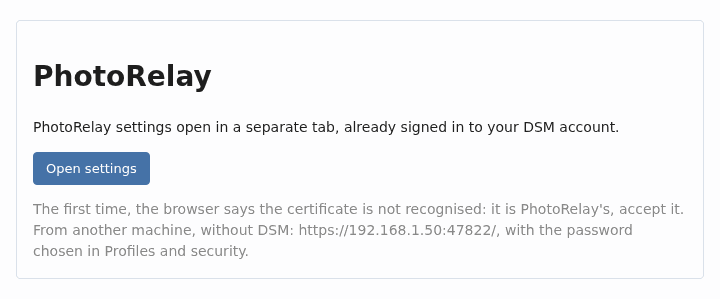
Bookmark the settings page: from any computer on the network, https://<NAS address>:47822 also opens without going through DSM, with a password (see below).
4. Link the phone (pairing)
Each person pairs their phone from their own DSM account, so that their photos arrive in their folder. You need the Mobile on the Fly app on the phone (Android guide).
- Sign in to DSM with your account, Main Menu › Mobile on the Fly › Open settings. The first time, the profile is created by itself: "Your Mobile on the Fly profile is ready: now pair your device."
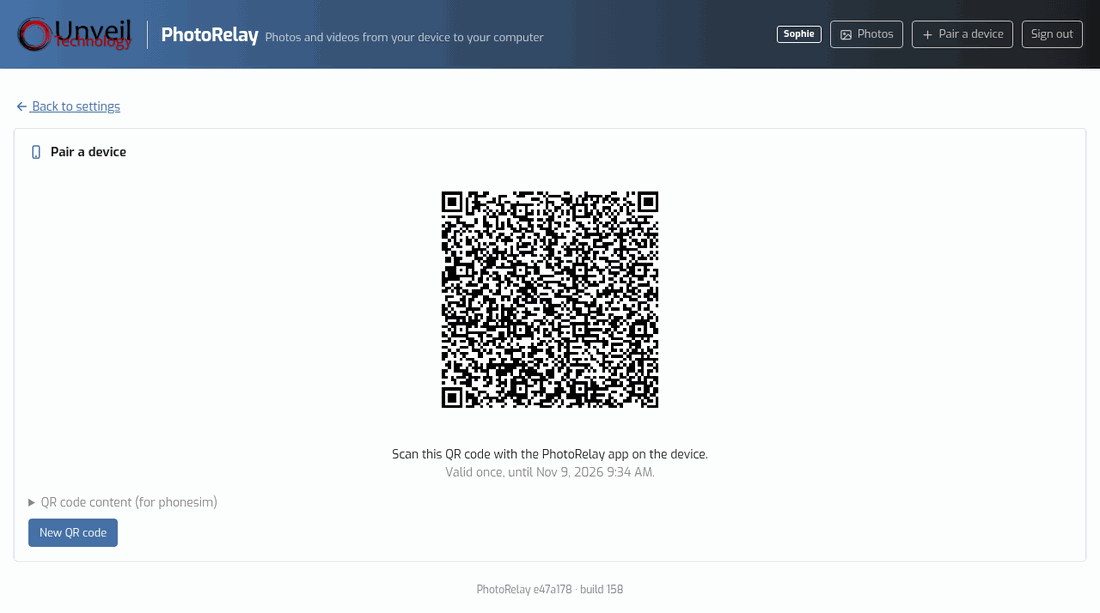
- Click Pair a device (top right): a QR code appears.
- On the phone, Mobile on the Fly app › Scan the QR code, check the device name, point at the QR code.
- The phone shows "Paired with “NAS-NAME”".
5. Check that everything works
- Take a photo with the phone, connected to the home Wi-Fi, then tap Send now in the app: Delivered goes up by 1.
- In File Station, the photo is in
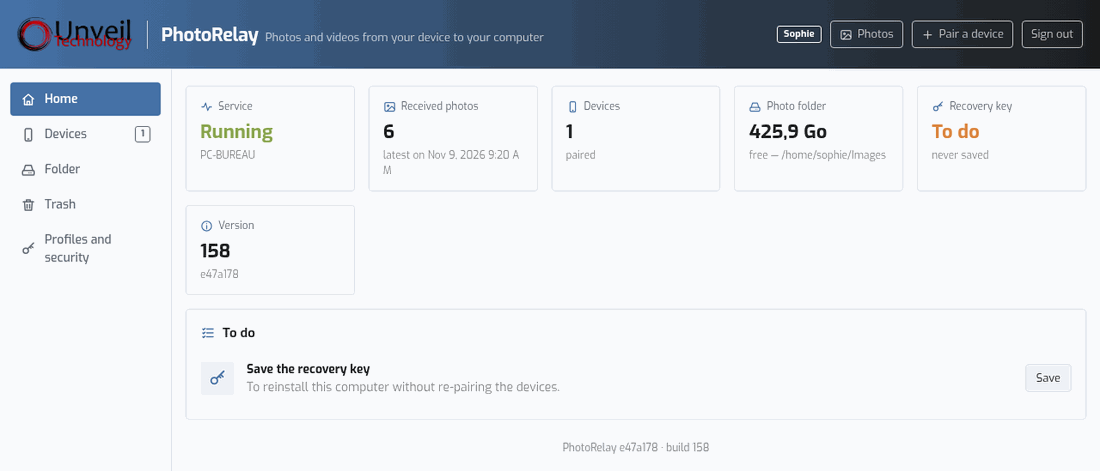
MobileOnTheFly/<account>/<phone>/Camera/2026/2026-11-09/; earlier installations:PhotoRelayfolder. - The settings (Home tab) show the number of photos received and the free space.
6. Accounts, folders and useful settings
Who can use Mobile on the Fly
By default, all DSM accounts see Mobile on the Fly in their Main Menu. To restrict it: Control Panel › Application Privileges › Mobile on the Fly.
Change folder
Folder tab › Browse…. A regular account can choose a folder in its personal space (homes/<account>); an administrator can choose any shared folder or USB disk. Move my photos here copies and checks the photos already received.
Recovery key (administrator)
Profiles and security tab › Recovery key: a passphrase of at least 12 characters, Download the recovery key, then keep the file off the NAS. It lets you reinstall the package (or move to a new NAS) without pairing the phones again.
Open the settings without DSM
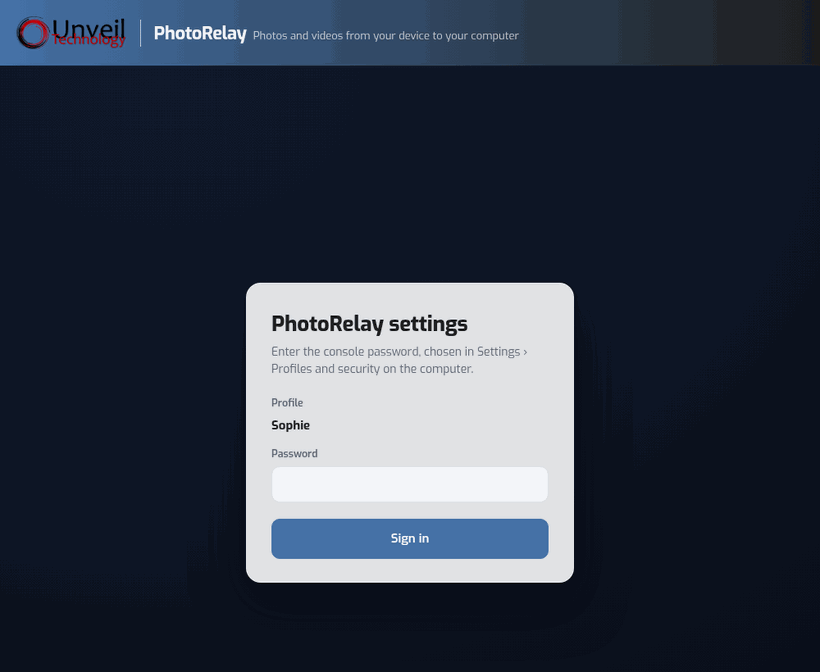
Profiles and security tab › Access from another device: choose a password (at least 8 characters). Then https://<NAS address>:47822 opens from any computer, tablet or phone on the local network, with this password, and with the same rights as your DSM account.
Protect the photos
The photos are encrypted during the transfer. Once stored, they are ordinary files on the NAS: so that a stolen disk stays unreadable, encrypt the shared folder (Control Panel › Shared Folder › Edit › Encryption) or the volume. Open DSM over https (port 5001) and give each person their own DSM account.
7. Common problems and solutions
The phone says "computer not found"
- Is the phone on the home Wi-Fi (not mobile data, not the guest Wi-Fi)?
- Is the Mobile on the Fly package running? Package Center › Mobile on the Fly: Running, otherwise Run.
- Is the DSM firewall enabled? Control Panel › Security › Firewall › Edit Rules: add an Allow rule for the built-in application Mobile on the Fly (ports 47820 and 47822) and for Bonjour (network discovery), from the local network.
- "Client isolation" option on the Wi-Fi access point, VPN on the phone: turn them off to try.
"Mobile on the Fly is not yet allowed to write here"
The package runs under an internal account named PhotoRelay, which must be able to write to the chosen folder. Control Panel › Shared Folder › the folder (for example homes) › Edit › Permissions › drop-down menu "System internal user" › PhotoRelay: tick Read/Write, Save, then try again. The MobileOnTheFly shared folder (PhotoRelay on an earlier installation) already has this permission.
"Mobile on the Fly is not set up yet"
An administrator must first open Mobile on the Fly once and answer the three questions (step 3). Then come back.
"This link has expired or was already used"
The link of the "Open settings" button can only be used once, for 2 minutes. Go back to DSM, reopen Mobile on the Fly from the Main Menu and click the button again.
The new tab does not open, or "This site can't be reached"
The browser may have blocked the window: allow pop-ups for the DSM address. If DSM is opened through QuickConnect or a domain name from outside, the settings can only be reached from the local network: open DSM using the NAS's local address (for example https://192.168.1.50:5001). Also check the DSM firewall (port 47822).
"Mobile on the Fly is not running: start it in Package Center"
Package Center › Mobile on the Fly › Run. If it stops again, contact support.
"The package is not compatible" during installation
It is not the right file for this model or this DSM version: a DSM 7 package does not install on DSM 6.2 (and vice versa), and each processor has its own file. See the table in step 1.
The photos do not appear in Synology Photos
Synology Photos shows each person's personal space (homes/<account>/Photos) and the shared space. Choose a folder in your personal space for the profile (Folder tab › Browse… › Photos), or add the MobileOnTheFly folder to the indexed folders of Synology Photos.
8. Updates
Mobile on the Fly updates itself (signed and verified update), without going through Package Center. The installed version is at the bottom of every settings page.
9. Uninstall
Package Center › Mobile on the Fly › Uninstall. The MobileOnTheFly (or PhotoRelay) shared folder and all the photos stay on the NAS. To reinstall later without pairing the phones again, keep the recovery key.
10. Still stuck? Contact support
Write to support@unveiltech.com and include:
- the NAS model and the DSM version (Control Panel › Info Center);
- the Mobile on the Fly version (at the bottom of the settings: "build …");
- the phone model and its Android version;
- the exact message, or a screenshot.