
Install Mobile on the Fly: QNAP (QTS 5)
Mobile on the Fly automatically stores the photos and videos from the phones at home or at the office on your QNAP NAS, over the local network, without going through the Internet. Allow 15 minutes for the first installation.
1. Before you start
- A QNAP NAS running QTS 5 (QTS 5.0 or later).
- An administrator account on the NAS.
- The phones on the same network as the NAS (same router, same Wi-Fi; not the "guest" Wi-Fi).
- A phone running Android 8 or later (see the Android guide).
- Set aside an hour after the installation: for your security, the profile and its password can only be created within the hour after Mobile on the Fly starts.
Which file should I download?
The NAS processor is shown in QTS: Control Panel › System › System Status › System Information (CPU line), or in the model's specifications on QNAP's website.
| Processor | Examples | File |
|---|---|---|
| Intel or AMD | TS-x53D, TS-x64, TS-x73A… | PhotoRelay_…_x86_64.qpkg |
| ARM 64-bit | TS-x33, TS-x28A, TS-x30… | PhotoRelay_…_arm_64.qpkg |
| ARM 32-bit, recent | TS-x31P2, TS-x31P3, TS-x31X… | PhotoRelay_…_arm-x41.qpkg |
| ARM 32-bit, older | TS-x31P, TS-x31+… | PhotoRelay_…_arm-x31.qpkg (if the other one is refused) |
If QTS refuses the package, saying it is not suitable for this model, you only needed the other file: nothing is broken.
2. Install the package
The Mobile on the Fly package is not signed by QNAP: you need to allow it once.
- Download the right
.qpkgfile from the Downloads page. - In QTS, open the App Center, click the Settings icon (gear, top right), tick "Allow installation of applications without a valid digital signature", then Apply.
- Still in the App Center, click the Install Manually icon (top right), Browse…, choose the downloaded file, then Install.
- QTS warns that the application does not have a valid digital signature: confirm to continue, then wait for the installation to finish.
Mobile on the Fly then updates itself: you can untick the option for unsigned applications if you wish.
3. First start: create the profile
- In QTS, click the Mobile on the Fly icon (desktop or Main Menu). The settings open in a new tab:
https://<NAS address>:47822. - The browser warns that the connection "is not private": this is Mobile on the Fly's own certificate, the connection really is encrypted. Chrome, Edge: Advanced › Continue to …; Firefox: Advanced… › Accept the Risk and Continue; Safari: Show Details › visit this website.
- The page "First start on this NAS: create your profile and the password that protects these settings." appears. Type the profile name (for example "Martin family" or "Agency"), a password (at least 8 characters) twice, then Create the profile.
- "Profile created. Mobile on the Fly is restarting": wait a few seconds, click Sign in and type the password.
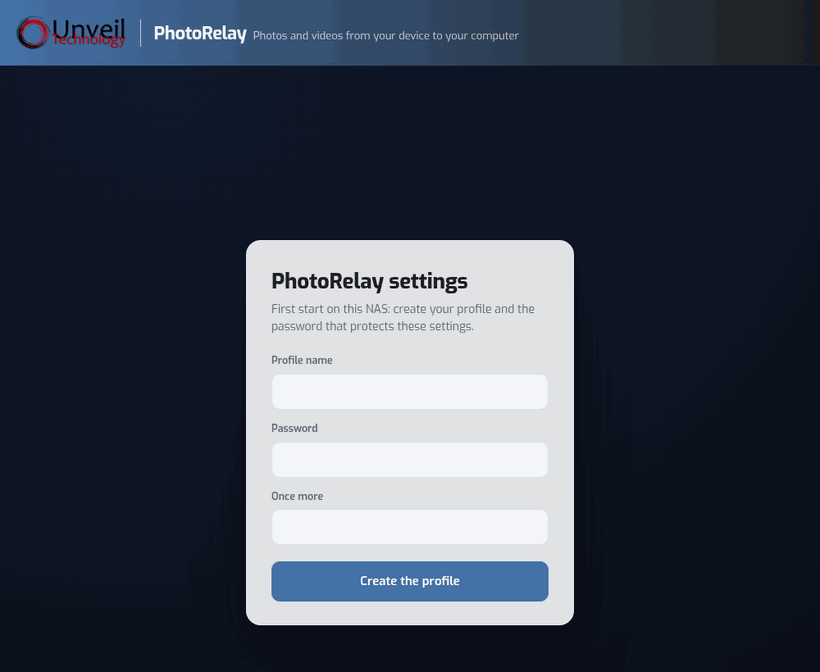
Write this password down: it protects the Mobile on the Fly settings. By default, the photos are stored in /share/Multimedia/Mobile on the Fly (visible in QuMagie and File Station), otherwise in Public.
4. Link the phone (pairing)
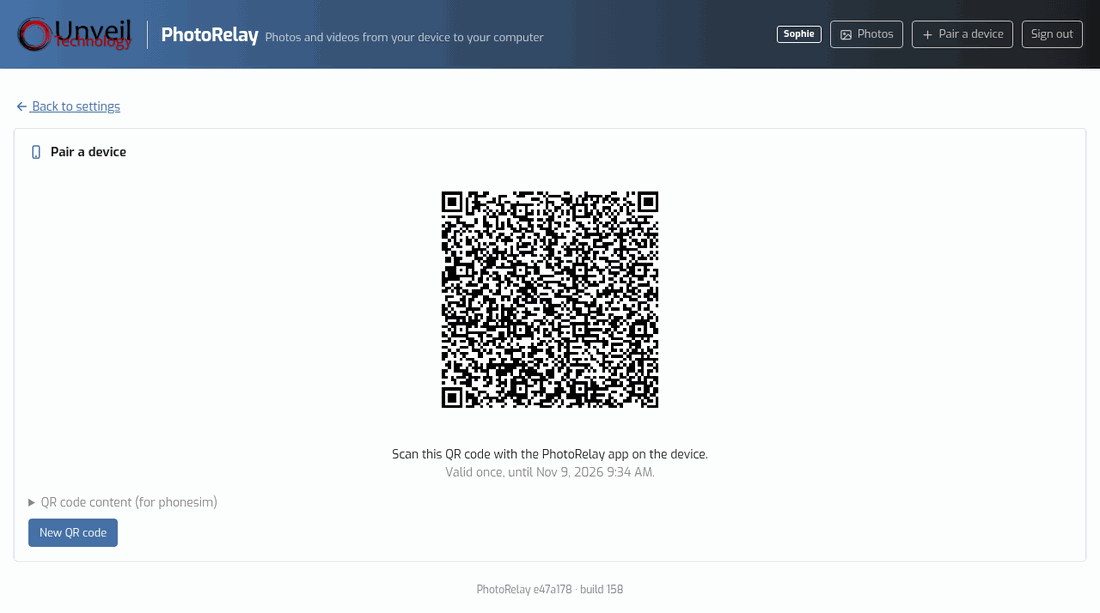
- In the settings, click Pair a device (top right): a QR code appears.
- On the phone, Mobile on the Fly app › Scan the QR code, check the device name (it will be the name of its folder), point at the QR code.
- The phone shows "Paired with “NAS-NAME”". Start again with a new QR code for each phone.
5. Check that everything works
- Take a photo with the phone connected to the Wi-Fi, then Send now in the app: Delivered goes up by 1.
- In File Station:
Multimedia/Mobile on the Fly/<phone>/Camera/2026/2026-11-09/; earlier installations:PhotoRelayfolder.
6. Useful settings
- Folder: Folder tab › Browse…: any shared folder on the NAS (
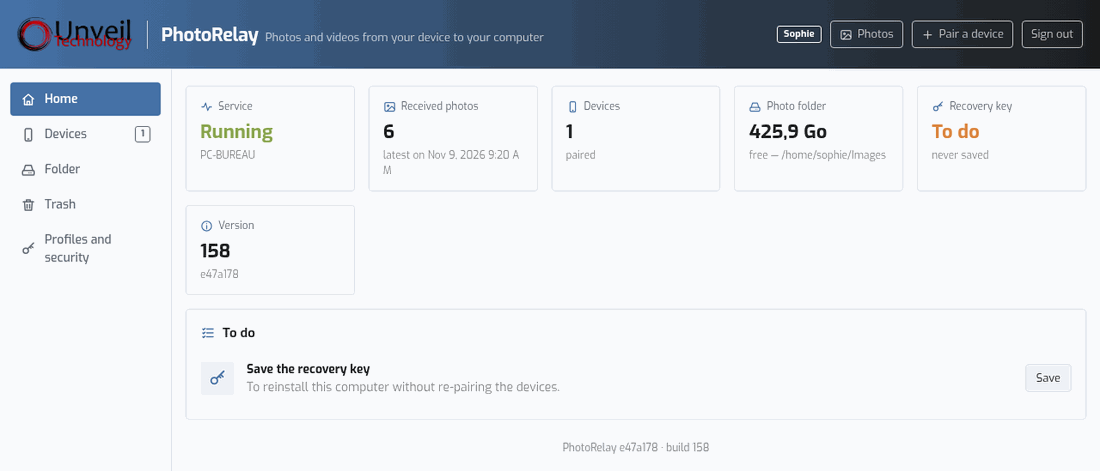
/share/…). Move my photos here copies and checks the photos already received. - Recovery key: Profiles and security tab › Download the recovery key (passphrase of at least 12 characters), to keep off the NAS. It lets you reinstall without pairing the phones again.
- Change the settings password: Profiles and security tab › Access from another device.
- Devices: rename, remove a lost or sold phone, turn on the cloud relay (paid plan).
- The settings open from any computer on the network:
https://<NAS address>:47822, with the password. After 5 failed attempts, you have to wait a few minutes.
7. Common problems and solutions
"Mobile on the Fly is not set up on this NAS yet." (no creation form)
The profile can only be created within the hour after Mobile on the Fly starts, for your security. In QTS: App Center › Mobile on the Fly › Stop, then Start, and reopen the page within the hour.
I forgot the settings password
On the sign-in page, click Forgot your password?. With File Station, create a folder named photorelay-reset in the Mobile on the Fly photos folder (by default Multimedia/Mobile on the Fly), come back to the page within the hour and click Reload: choose the new password. Photos and paired devices do not change; the photorelay-reset folder is removed automatically.
The phone says "computer not found"
- Is the phone on the home Wi-Fi (not mobile data, not the guest Wi-Fi)?
- Is Mobile on the Fly started? App Center › Mobile on the Fly: Started.
- Is the QuFirewall firewall enabled? Allow TCP ports 47820 and 47822, and UDP 5353 (Bonjour), from the local network.
- "Client isolation" option on the Wi-Fi access point, VPN on the phone: turn them off to try.
"choose a shared folder of the NAS (/share/…)"
Mobile on the Fly only stores photos in the NAS's shared folders. Use Browse… to choose one.
"Too many attempts: try again in a few minutes."
After 5 wrong passwords in 5 minutes, signing in is blocked for a few minutes. Wait, then try again.
The Mobile on the Fly icon does not open anything
Open https://<NAS address>:47822 directly in the browser. Check in the App Center that Mobile on the Fly is started.
8. Updates
Mobile on the Fly updates itself (signed and verified update). The version is at the bottom of every settings page.
9. Uninstall
App Center › Mobile on the Fly › Remove (the application's menu). The photos stay in their shared folder. The settings and pairings are deleted with the package: keep the recovery key to reinstall without pairing again.
10. Still stuck? Contact support
Write to support@unveiltech.com and include:
- the NAS model and the QTS version;
- the installed file (for example
PhotoRelay_1.0.158_x86_64.qpkg) and the version shown at the bottom of the settings; - the phone model and its Android version;
- the exact message, or a screenshot.