
Install Mobile on the Fly: Windows 10 and 11
Mobile on the Fly automatically copies the photos and videos from your phones and tablets to this computer, over your home or office Wi-Fi, without going through the Internet. Allow 10 minutes for the first installation.
1. Before you start
- A computer running Windows 10 or Windows 11, turned on when you want to receive the photos (it can be asleep the rest of the time: the phones keep the photos and send them when it wakes up).
- An administrator account on the computer, or someone who knows its password: Windows asks for it once during the installation.
- The phone and the computer on the same network: the same Wi-Fi (or the computer plugged by cable into the same router). Not the router's "guest" Wi-Fi.
- Free space on the disk: by default, the photos arrive in your Pictures folder. You can choose another disk later (external disk, second disk, OneDrive folder…).
- A phone running Android 8 or later (see the Android guide).
Which file should I download?
| Your computer | File |
|---|---|
| The vast majority of PCs (Intel or AMD processor) | Windows (Intel, AMD): PhotoRelay-Setup-amd64.exe |
| PCs with an ARM processor (Surface Pro X, "Copilot+" PCs with Snapdragon…) | Windows on ARM: PhotoRelay-Setup-arm64.exe |
| Company computers (deployment by GPO, Intune, SCCM) | MSI package (64-bit): see the Businesses section |
To find out which processor you have: press the Windows key, type System Information, open it. The System Type line says "x64-based PC" (Intel, AMD) or "ARM64-based PC". If in doubt, take the first one.
2. Install Mobile on the Fly on the computer
- On the Downloads page, click Download next to the right file.
- The browser may say that this file "isn't commonly downloaded". This is normal for a new program: in Edge, click the … next to the download, then Keep (and Keep anyway if Edge insists). In Chrome, click Keep.
- Open the downloaded file (Downloads folder, or click the download in the browser).
- If a blue "Windows protected your PC" window appears (Microsoft Defender SmartScreen): click More info, then Run anyway. This message appears for programs Microsoft does not know well yet; the file really does come from our site.
- Mobile on the Fly asks: "Install Mobile on the Fly on this computer? The photos and videos of your devices will arrive in your Pictures folder (can be changed later), without going through the Internet." Click Yes.
- Windows asks for an administrator's permission ("Do you want to allow this app to make changes to your device?" window): click Yes, or type the administrator password if Windows asks for it.
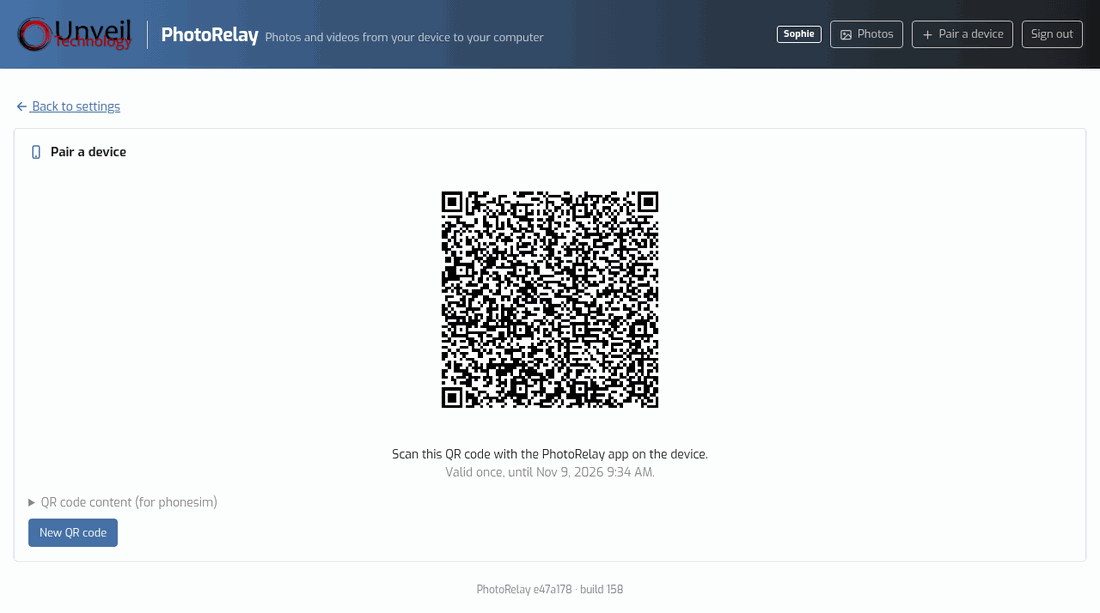
- After a few seconds: "Mobile on the Fly is installed". Click OK. Your browser opens by itself on the pairing page, with a QR code: go to the next step.
The installation set up: the Mobile on the Fly service (it starts with the computer, even when nobody is signed in, and stores the photos), the Mobile on the Fly icon near the clock (it may be hidden behind the small ^ arrow), and the permission in the Windows firewall for "private" networks.
3. Link the phone (pairing)
Pairing is done only once per phone. You need the Mobile on the Fly app on the phone: if you don't have it yet, first follow the Android guide (the pairing page also shows a small QR code to download it).
- On the computer, the pairing page is open. If not: click the Mobile on the Fly icon near the clock › Pair a device…
- On the phone, open the Mobile on the Fly app and tap Scan the QR code (allow the camera if Android asks).
- Check the name suggested in Name of this device (it will be the name of the folder for its photos on the computer, for example "Julie's phone"), then point at the QR code shown on the computer screen.
- The phone shows "Paired with “PC-NAME”. Photos are sent as soon as the device is on the home Wi-Fi." You're done.
Each person in the household who has their own Windows account can keep their photos separate: see Profiles.
4. Check that everything works
- Take a photo with the phone, with the phone connected to the Wi-Fi.
- In the app, tap Send now: Delivered goes up by 1.
- On the computer, click the Mobile on the Fly icon › Open the photos folder. The photo is in
Pictures\Mobile on the Fly\<phone name>\Camera\2026\2026-11-09\(original folder on the phone, then year and day); earlier installations:PhotoRelayfolder.
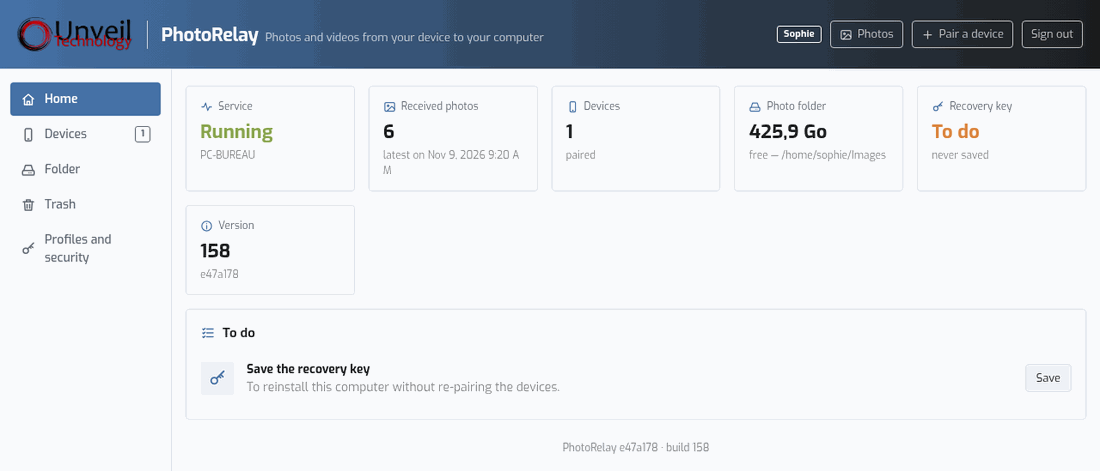
After that, there is nothing more to do: the photos are sent on their own as soon as the phone is on the home Wi-Fi, after each new photo, and every 15 minutes.
5. Useful settings
Open the settings: click the Mobile on the Fly icon › Settings…. The menu on the left has five tabs.
Back up the recovery key (important)
Without it, if the computer is reinstalled or replaced, you will have to pair all the phones again (the photos already stored are not lost). Profiles and security tab › Recovery key card: choose a passphrase of at least 12 characters, write it down somewhere safe, click Download the recovery key, then keep the cle-photorelay.age file off the computer (USB stick, digital safe…).
Change the photos folder
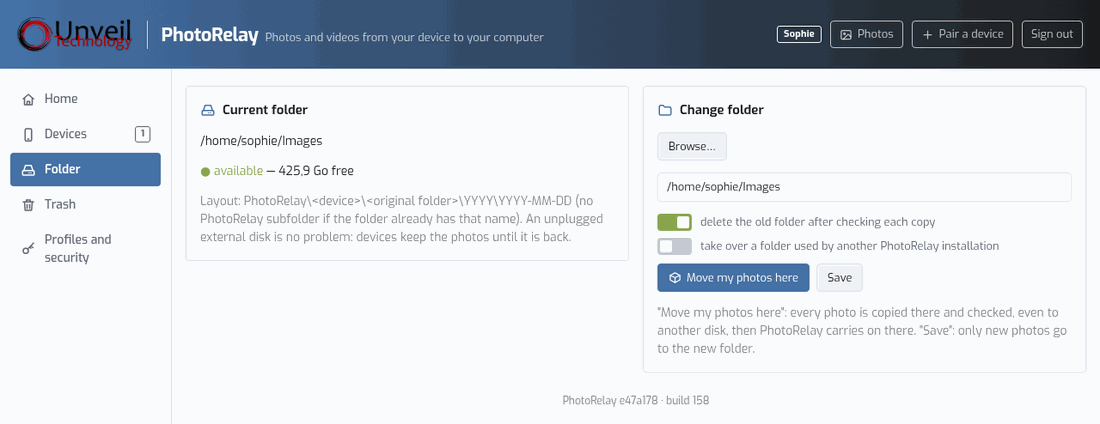
Folder tab › Choose a folder…, then Save (new photos will go there) or Move my photos here (the photos already received are copied there and checked one by one). An unplugged external disk is no problem: the phones keep the photos until it is back.
Devices
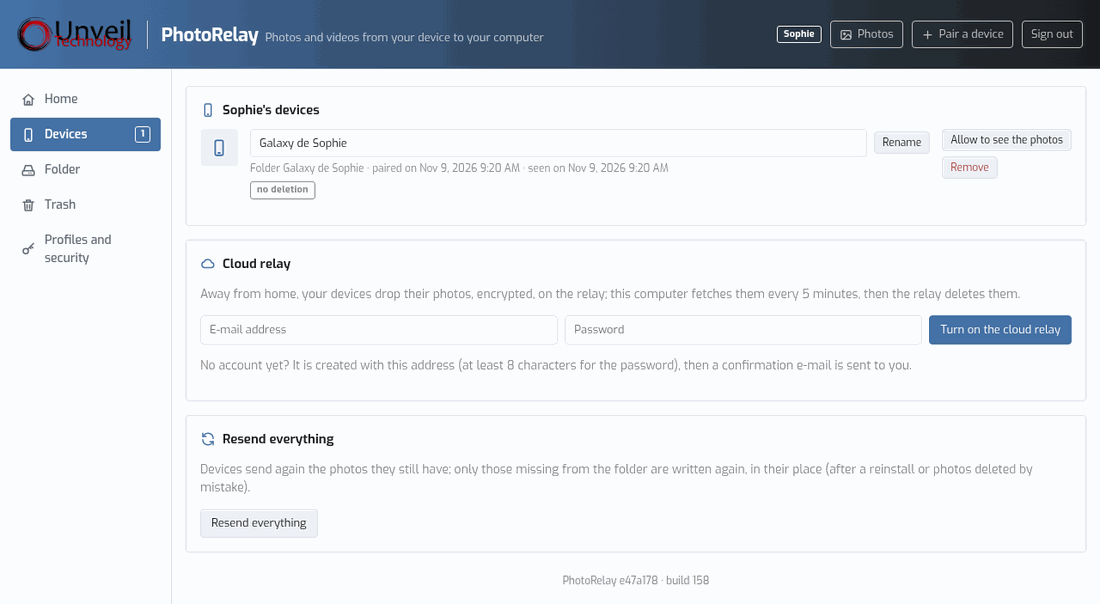
Devices tab: rename a phone, let it see the computer's photos, or Remove it (lost or sold phone: it can no longer send anything). This is also where you turn on the cloud relay (paid plan: photos are also sent when you are away from home, encrypted).
Profiles: one person, one folder
Each Windows account on the computer can have its own profile: its phones, its folder. The other person signs in to their own Windows session, clicks the Mobile on the Fly icon › Create my profile…, chooses their folder, then pairs their phone. Photos from other accounts never arrive in their folder.
Trash
If you have set a phone so that its deletions are mirrored on the computer, the deleted photos go to the Trash tab (folder "Supprimées du téléphone") and stay there for 30 days. Nothing is ever erased without your consent: by default, deleting a photo from the phone does not touch the computer.
Open the settings from another device
Profiles and security tab › Access from another device: choose a password (at least 8 characters). The settings can then be opened from another computer, a tablet or a phone on the local network, at the address shown (for example https://192.168.1.20:47822). The first time, the browser warns that the certificate is not recognized: this is normal (a certificate specific to this computer), continue to the site.
6. Common problems and solutions
The phone says "computer not found"
- Is the computer turned on (not shut down, not in hibernation)? The photos will be sent as soon as it is: nothing is lost.
- Is the phone on the same Wi-Fi as the computer? Not mobile data, not the "guest" Wi-Fi (often isolated from the rest of the home), not another network.
- The Windows network must use the Private profile: Settings › Network & internet › Wi-Fi (or Ethernet) › the network name › Network profile type: Private. The Mobile on the Fly settings show it in red on the Home page when this is not the case.
- An antivirus with its own firewall (Norton, Kaspersky, Bitdefender, ESET, McAfee…) can block Mobile on the Fly: in its firewall, allow
C:\Program Files\PhotoRelay\photorelay.exe, or TCP ports 47820 and 47822 and UDP port 5353 on the local network. - A VPN running on the phone or on the computer can stop them from seeing each other: turn it off to try.
- Some routers or Wi-Fi access points have a "client isolation" or "Wi-Fi isolation" option: it must be turned off for the home network.
"QR code expired or already used"
A QR code can only be used once and for 10 minutes. On the computer, click New QR code and scan again.
"Folder unavailable (disk unplugged?)"
The photos folder is on a disk that is not plugged in (or a network drive that is not connected). Nothing is lost: the phones keep the photos. Plug the disk back in; the Mobile on the Fly icon turns blue again. The icon stays orange while the folder is unavailable.
"Not enough space left on the computer"
Free up space on the disk, or choose a folder on another disk (Folder tab). The phones keep the photos in the meantime.
I can't find the Mobile on the Fly icon
It is near the clock, sometimes hidden behind the ^ arrow. To keep it visible: right-click the taskbar › Taskbar settings › Other system tray icons › Mobile on the Fly: On. If it was closed: Start menu › type "PhotoRelay"… or sign out of Windows and back in. The service itself keeps receiving the photos even without the icon.
The icon is gray: "Service stopped"
The Mobile on the Fly service restarts by itself if something goes wrong. If it stays stopped: press the Windows key, type Services, open it, find Mobile on the Fly, right-click › Start. If that is not enough, reinstall Mobile on the Fly over the existing installation (settings and devices are kept), then contact support.
"The installation failed"
The message shows the end of the log and where it is (%TEMP%\PhotoRelay-Setup.log). Try again after restarting the computer; if it fails again, send this file to support.
"Installation canceled: Windows needs an administrator's approval"
The Windows window was refused or closed. Run the installation again and click Yes; on a company PC, ask your IT department (or use the MSI).
A phone was lost, stolen or sold
Settings › Devices › Remove next to that phone. It can no longer send anything; its photos already stored stay on the computer.
New computer, or Windows reinstalled
- Install Mobile on the Fly on the new computer.
- With the recovery key: open the Command Prompt as administrator (press the Windows key, type cmd, right-click › Run as administrator), then type (adjusting the file path):
"C:\Program Files\PhotoRelay\photorelay.exe" import-key E:\cle-photorelay.age
Type the passphrase. Then"C:\Program Files\PhotoRelay\photorelay.exe" stopand"C:\Program Files\PhotoRelay\photorelay.exe" start. The phones carry on without redoing anything. - Without a recovery key: pair each phone again (app › Pair with another computer). To get back the photos still on the phones: Settings › Devices › Resend everything.
7. Businesses: MSI, GPO, Intune
- Silent installation:
msiexec /i PhotoRelay-1.0.xxx-x64.msi /qn(x64 only; for ARM PCs, usePhotoRelay-Setup-arm64.exe). - Deployment by GPO (computer startup) or Intune (device context): Mobile on the Fly installs without a user. The first account that signs in sees the gray Mobile on the Fly icon, "no profile yet for this account": they click Create my profile… and choose their folder. Each other account does the same.
- Installed by a user (msiexec run from their session): their account becomes the account of the main profile, Pictures folder.
- Silent uninstallation:
msiexec /x PhotoRelay-1.0.xxx-x64.msi /qnkeeps the keys and pairings; addPURGE=1to erase everything (photos are never deleted). - Updates: Mobile on the Fly updates itself from
https://mobileonthefly.com/dl(signed and verified update). The MSI does not need to be redeployed for each version. - Network:
The Windows firewall rules (Port Purpose TCP 47820, inbound Receiving photos from the phones (local network only) UDP 5353, inbound Discovery of the computer on the network (mDNS / Bonjour) TCP 47822 (and 80), inbound Settings from another device (if enabled) HTTPS 443, outbound to mobileonthefly.com,xyrisfiles.newage.ovhUpdates; cloud relay (paid plan) PhotoRelay-TCP,PhotoRelay-mDNS,PhotoRelay-Console) are created for the Private profile only. On a company network classified as "Domain", open these ports by GPO. Mobile on the Fly only accepts addresses from private networks. - Locations: program in
C:\Program Files\PhotoRelay; configuration, keys and logs inC:\ProgramData\PhotoRelay(log:C:\ProgramData\PhotoRelay\logs\agent.log, and Event Viewer › Windows Logs › Application, source PhotoRelay). Windows serviceMobile on the Fly(LocalSystem, Automatic (Delayed Start)). - Security: encrypted transfers (TLS 1.3, computer certificate checked by the phone), agent key protected by Windows (DPAPI), photos folder restricted to the profile's account, administrators and the system. For a shared computer, encrypt the disk with BitLocker.
8. Updates
Nothing to do: Mobile on the Fly regularly checks for a new version, downloads it, checks its signature and installs it, waiting until no transfer is in progress. The icon restarts by itself. The installed version is at the bottom of every settings page ("build").
9. Uninstall
- Windows Settings › Apps › Installed apps › Mobile on the Fly › Uninstall.
- Accept the administrator prompt, then confirm: "Your photos are never deleted."
- To the question "Keep the paired devices and the computer's key?": Yes if you plan to reinstall (the phones will carry on without redoing anything), No to erase everything.
The photos stay in their folder. Also remember to uninstall the app from the phones, or to pair them with another computer.
10. Still stuck? Contact support
Write to support@unveiltech.com, and for a quick answer include:
- the Windows version and the Mobile on the Fly version (at the bottom of the settings: "Mobile on the Fly … · build …");
- the phone model and its Android version;
- the exact message shown, or a screenshot (Windows + Shift + S keys);
- if possible, the log
C:\ProgramData\PhotoRelay\logs\agent.log.