
Install Mobile on the Fly: Linux (any distribution with systemd)
Mobile on the Fly automatically copies the photos and videos from your phones to this Linux computer, over the local network, without going through the Internet. It installs in your account, without sudo, and keeps itself up to date. Allow 10 minutes.
1. Before you start
- A distribution with systemd: Ubuntu, Debian, Linux Mint, Fedora, openSUSE, Arch, Raspberry Pi OS…
- An x86_64 processor (Intel, AMD) or aarch64 (ARM 64-bit: Raspberry Pi 4 and 5…).
curlorwget.- The phones on the same network as the computer.
- To choose the photos folder in a window:
zenity(often already installed; otherwise, type the path).
2. Install Mobile on the Fly
- Open a terminal with your usual account (not root, not sudo: the photos belong to you).
- Type:
curl -fsSL https://mobileonthefly.com/install.sh | sh
The script detects the processor, downloads Mobile on the Fly, checks its fingerprint, installs it in~/.local/bin/photorelayand creates a systemd user service. - If the script shows "To start Mobile on the Fly with the computer, even with nobody logged in: sudo loginctl enable-linger <you>", type this command (only once, administrator password). Otherwise Mobile on the Fly only runs while you are logged in.
- The script ends with "Mobile on the Fly is installed" and gives the settings command:
photorelay settings
(or~/.local/bin/photorelay settingsif~/.local/binis not in your PATH). The browser opens on the settings.
No Internet access on this machine: download the PhotoRelay-linux-amd64.tar.gz archive (or arm64) from the Downloads page, extract it (tar xzf PhotoRelay-linux-amd64.tar.gz) and run sh PhotoRelay/install.sh.
Firewall
If a firewall is active, allow from the local network TCP port 47820 (photos), UDP 5353 (discovery, mDNS) and, for the settings from another device, TCP 47822:
# ufw (Ubuntu, Mint…)
sudo ufw allow from 192.168.0.0/16 to any port 47820 proto tcp
sudo ufw allow from 192.168.0.0/16 to any port 47822 proto tcp
sudo ufw allow from 192.168.0.0/16 to any port 5353 proto udp

# firewalld (Fedora, openSUSE…)
sudo firewall-cmd --permanent --add-port=47820/tcp --add-port=47822/tcp --add-service=mdns
sudo firewall-cmd --reload
Adjust 192.168.0.0/16 if your network uses other addresses (for example 10.0.0.0/8).
3. Link the phone (pairing)
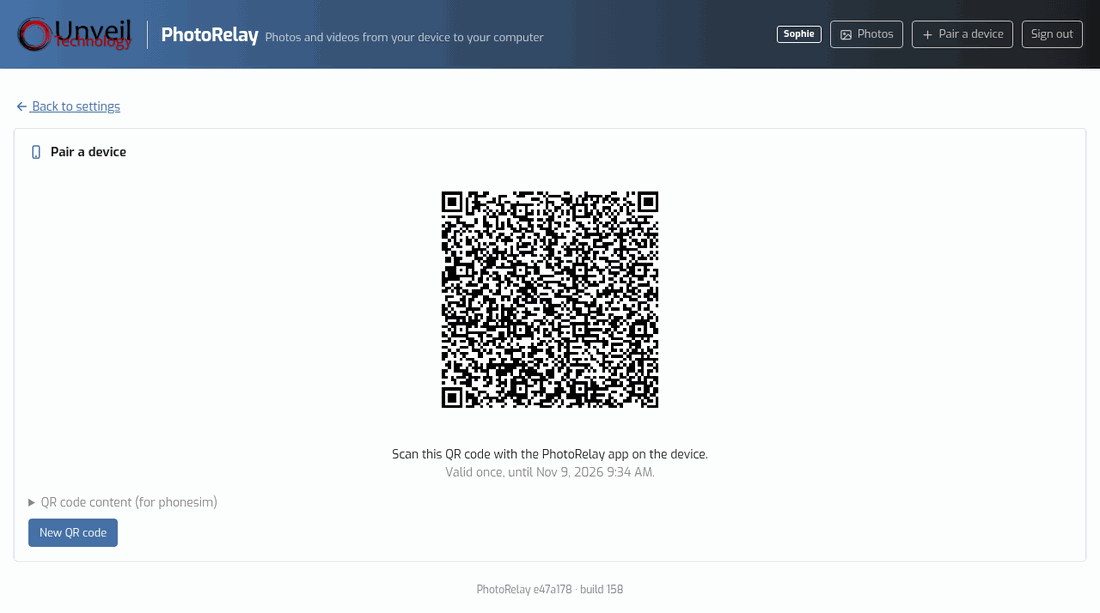
- In the settings (
photorelay settings), click Pair a device: a QR code appears. From the command line:photorelay pair. - On the phone (Android guide), Mobile on the Fly app › Scan the QR code, check the device name, point at the QR code.
- The phone shows "Paired with …".
4. Check that everything works
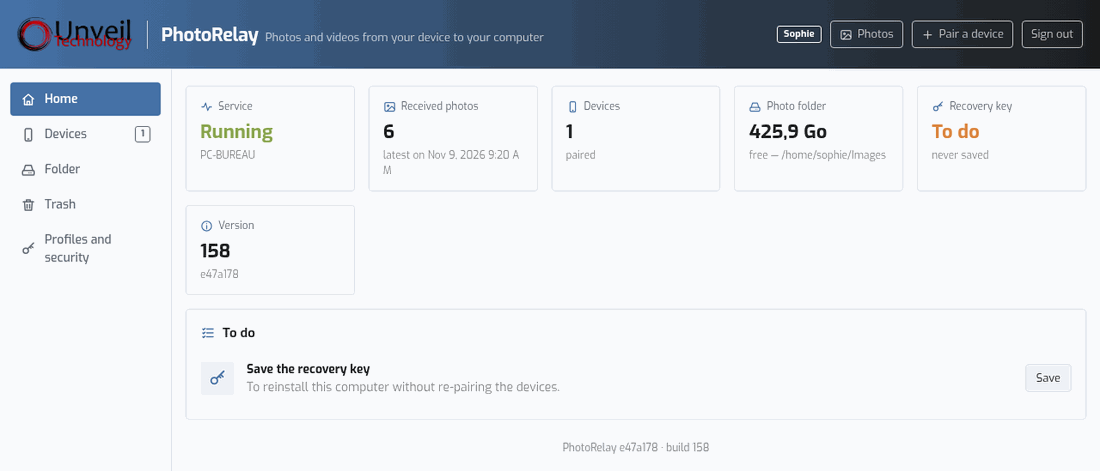
- Take a photo with the phone connected to the Wi-Fi, then Send now: Delivered goes up by 1.
- The photo is in
~/Pictures/Mobile on the Fly/<phone>/Camera/2026/2026-11-09/(or~/Images/…); earlier installations:PhotoRelayfolder. photorelay statussums up the state: service, folder, devices, recovery key.
5. Useful settings
- Folder: Folder tab › Choose a folder… (or
photorelay set-dest ~/Photos). Move my photos here copies and checks the photos already received. - Recovery key: Profiles and security tab › Download the recovery key (or
photorelay export-key), to keep off the computer. To restore it on a new machine:photorelay import-key cle-photorelay.age. - Settings from another device: Profiles and security tab › Access from another device, then
https://<computer address>:47822. - Protect the photos: encrypt the disk (LUKS, offered when installing most distributions), one account per person.
- All the commands:
photorelay help.
6. Common problems and solutions
The phone says "computer not found"
- Is the computer on, and the phone on the same Wi-Fi (not the guest Wi-Fi)?
- Is the service running?
systemctl --user status photorelay; otherwisephotorelay start. - Firewall: see the commands above.
- VPN running on the computer or the phone, "client isolation" option on the Wi-Fi access point: turn them off to try.
"run the installer without sudo"
Run the installation command again from your own account, without sudo.
"systemd is required"
Mobile on the Fly needs systemd to run as a service. Distributions without systemd (Alpine, Devuan…) are not supported.
"unsupported processor"
Only x86_64 and aarch64 are supported. A Raspberry Pi must use a 64-bit system (Raspberry Pi OS 64-bit).
"photorelay: command not found"
Use the full path ~/.local/bin/photorelay, or add ~/.local/bin to the PATH (closing and reopening the terminal is often enough).
Mobile on the Fly stops when I log out
Type sudo loginctl enable-linger $USER once: Mobile on the Fly will run as soon as the computer starts.
"Folder unavailable (disk unplugged?)"
The disk of the photos folder is not mounted. Nothing is lost: the phones keep the photos. Mount the disk.
7. Updates
Mobile on the Fly updates itself (signed and verified update). photorelay version shows the installed version.
8. Uninstall
photorelay uninstall          # keeps keys and pairings (reinstall without pairing again)
photorelay uninstall --purge  # also erases keys, settings and pairings
rm ~/.local/bin/photorelay
The photos are never deleted.
9. Still stuck? Contact support
Write to support@unveiltech.com and include:
- the distribution and its version, the output of
photorelay versionandphotorelay status; - the log:
journalctl --user -u photorelay --since today; - the phone model and its Android version;
- the exact message.